Save vs Save As: Complete Guide to File Storage Options
What Does Save Actually Do?
The Save function is something most of us use dozens of times daily without giving it much thought. When working with documents, spreadsheets, or other files, pressing that familiar disk icon or hitting Ctrl+S has become almost instinctive. But what's actually happening when you save?
In essence, the Save command updates an existing file with any changes you've made since the last save. It's like telling your computer, "I want to keep all these changes, please update the file." The beauty of Save is its simplicity – one click, and your work is preserved in its current state.
I remember working on a crucial presentation last month and hitting Save every few minutes out of sheer habit. That repetitive action has been ingrained in me since I lost a 20-page report years ago. Save is meant to protect your current work, allowing you to update the same file repeatedly without creating multiple versions.
When you use Save on an existing document, it overwrites the previous version completely. This means the older version disappears forever, replaced by your current work. This behavior is perfect when you're making progressive improvements to a single document, but it can be problematic if you later realize you need information from an earlier version.
Understanding the Save As Function
While Save updates existing files, Save As opens up more possibilities for file management. This function allows you to create an entirely new file based on your current document. Think of it as making a duplicate that you can modify independently of the original.
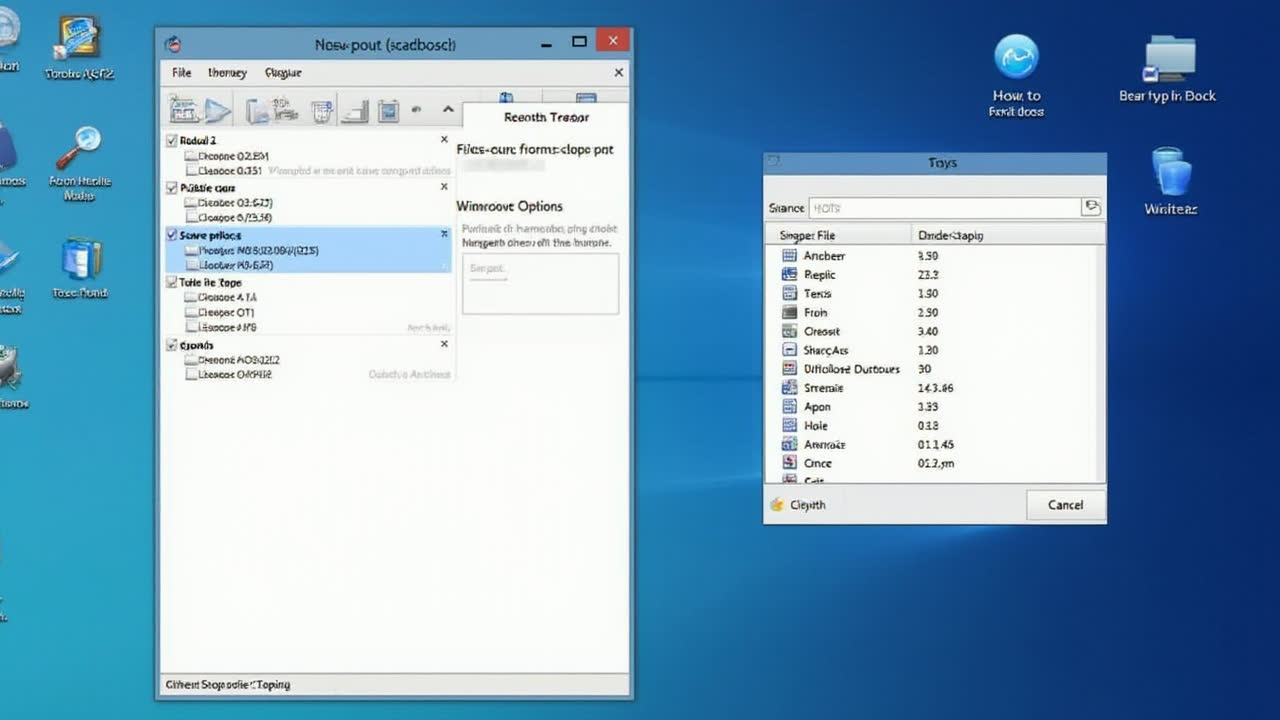
When you select Save As, a dialog box appears asking where you want to store the file, what name to give it, and sometimes what format to use. This flexibility makes Save As incredibly useful for creating multiple versions, backups, or variations of your work.
I use Save As almost daily in my writing process. For instance, when drafting this article, I created version-specific files like "save-article-draft," "save-article-revision," and "save-article-final." This practice gives me a safety net – if I make changes I later regret, I can always return to an earlier version.
Another brilliant aspect of Save As is the ability to change file formats. Need to convert your Word document to a PDF? Save As can handle that. Want to save your high-resolution photo as a web-optimized JPEG? Save As comes to the rescue again. This versatility makes it an essential tool for adapting your files to different purposes.
Key Differences Between Save and Save As
| Feature | Save | Save As |
|---|---|---|
| Primary Function | Updates existing file with new changes | Creates a new file or new version |
| File Location | Uses original file location | Allows selection of new location |
| File Naming | Keeps original filename | Allows selection of new filename |
| File Format | Maintains original format | Allows changing to different format |
| Usage Complexity | Single-step process | Multi-step process (select location, name, format) |
| Version Control | Overwrites previous version | Preserves original file while creating new version |
| Keyboard Shortcut | Ctrl+S (Windows) / Cmd+S (Mac) | F12 (Windows) / Shift+Cmd+S (Mac) |
| Best For | Ongoing work in progress | Creating backups or variations |
When Should You Use Save?
The Save function shines in several common scenarios. First and foremost, use Save when you're making incremental changes to a document and want to preserve your progress. This is your go-to option for regular updates to an existing file.
Do you have a habit of saving your work? You should! Regular saving is crucial to prevent data loss, especially when working on important documents. I typically hit Save every few minutes or after completing a significant section. Some applications offer auto-save features, but I still prefer the security of manually saving – it gives me peace of mind.
Save is also perfect when you're collaborating on a document and need to ensure everyone has access to the latest version. When multiple people are working on the same file, consistent saving keeps everyone on the same page – literally and figuratively.
However, there are situations where using Save can be risky. If you're making extensive changes that you might want to reverse later, relying solely on Save means losing your previous version. That's where our next function comes in handy...
When Should You Use Save As?
Save As becomes your best friend in numerous situations. First, when you want to create a new document based on an existing one without altering the original. This is perfect for templates or starting points that you use repeatedly.
I find Save As invaluable when working on document revisions. Rather than overwriting my original work, I can create dated versions like "Project_May10" and "Project_May15" to track changes over time. This simple practice has saved me countless headaches when clients ask to "go back to what we had last week."
Another prime scenario for Save As is when you need to change the file format. Maybe you created a document in Word but need to share it as a PDF, or perhaps you're working with an image that needs converting from PNG to JPEG. Save As lets you select from available format options, making file conversion straightforward.
Save As also proves essential when you want to store a file in multiple locations. Perhaps you keep a copy on your local drive for quick access but also want a version in cloud storage for backup and remote access. With Save As, you can create these different instances with just a few clicks.
Common Mistakes People Make with Save and Save As
Despite their seeming simplicity, these functions are often misused. One frequent error is relying exclusively on Save and never using Save As for backups. This risky approach leaves you without earlier versions to fall back on if something goes wrong.
On the flip side, some users create unnecessary duplicates by habitually using Save As when a simple Save would suffice. This can lead to folder clutter and confusion about which version is current. I once worked with someone who had fifteen versions of the same document – none clearly labeled – making it impossible to determine which was the latest.
Another common mistake is forgetting to save altogether. We've all experienced that moment of panic when a program crashes or power fails, and we realize we haven't saved recently. Developing a consistent saving habit is essential for protecting your work.
Some users also struggle with organizing saved files effectively. When using Save As to create multiple versions, a clear naming convention becomes crucial. Without one, you'll quickly lose track of what's what. I recommend including dates or version numbers in filenames, like "Budget_2026_v3" or "Proposal_May10_draft."
Advanced Save Techniques
Beyond the basics, some advanced saving techniques can enhance your file management. Auto-save features in modern applications provide an extra layer of protection against data loss. In Microsoft Office, for example, you can configure auto-save intervals to match your needs.
Cloud-based saving has revolutionized how we work with files. Services like Google Docs save automatically and maintain version history, combining the best aspects of both Save and Save As. This approach allows you to roll back to previous versions while ensuring your current work is continuously preserved.
For critical projects, consider implementing a systematic backup strategy. This might include regular Save As operations to create timestamped versions, coupled with storage in multiple locations. I personally follow the 3-2-1 rule for important work: three copies, on two different media types, with one copy stored off-site.
File versioning systems offer another sophisticated approach to saving. These tools, often integrated into professional software, track changes automatically and let you revert to specific points in your document's evolution. They're like having an unlimited undo button that works across multiple saving sessions.
Frequently Asked Questions About Save and Save As
Does Save As create a duplicate of my file?
Yes, Save As creates a new copy of your file while keeping the original intact. This is different from Save, which updates the existing file without creating a duplicate. When you use Save As, you'll be prompted to choose a location and filename for the new file, which can be the same as or different from the original. This makes Save As perfect for creating backups or variations of your work without risking changes to your original document.
Can I recover an older version of a file after using Save?
Recovering older versions after using Save can be challenging because Save overwrites the previous version of your file. However, you have several potential recovery options. First, check if your application has an auto-backup feature—many modern programs create temporary backups automatically. Windows users can try right-clicking on the file and selecting "Restore previous versions." Mac users might find older versions in Time Machine. Cloud storage services like OneDrive, Google Drive, and Dropbox often maintain version histories as well. If these methods fail, you might need specialized file recovery software, but results aren't guaranteed.
What file formats can I convert to using Save As?
The available file formats in Save As depend entirely on the application you're using. Word processors like Microsoft Word typically allow saving to formats such as DOCX, DOC, PDF, RTF, TXT, and HTML. Image editing software might offer JPEG, PNG, GIF, TIFF, and PSD options. Spreadsheet programs commonly support XLSX, XLS, CSV, and PDF formats. The format options appear in a dropdown menu in the Save As dialog box. Always verify that your chosen format preserves the features you need, as some conversions might lose formatting, layers, or other elements specific to the original format.
Final Thoughts on Save vs Save As
Understanding the distinction between Save and Save As might seem trivial, but it can significantly impact your productivity and data security. Save provides quick updates to existing work, while Save As offers flexibility for creating variations, backups, and format conversions.
In my experience, developing a thoughtful approach to saving files has prevented countless disasters and streamlined my workflow. I recommend creating personal guidelines for when to use each function based on your specific needs and projects.
Remember that these functions complement each other – they're not an either/or proposition. The most efficient file management strategies incorporate both Save and Save As at appropriate moments in your workflow.
Next time you're working on an important document, take a moment to consider whether you should Save or Save As. That brief pause for thought could save you hours of rework and frustration down the line. After all, effective file management isn't just about preserving your work – it's about preserving your peace of mind.